
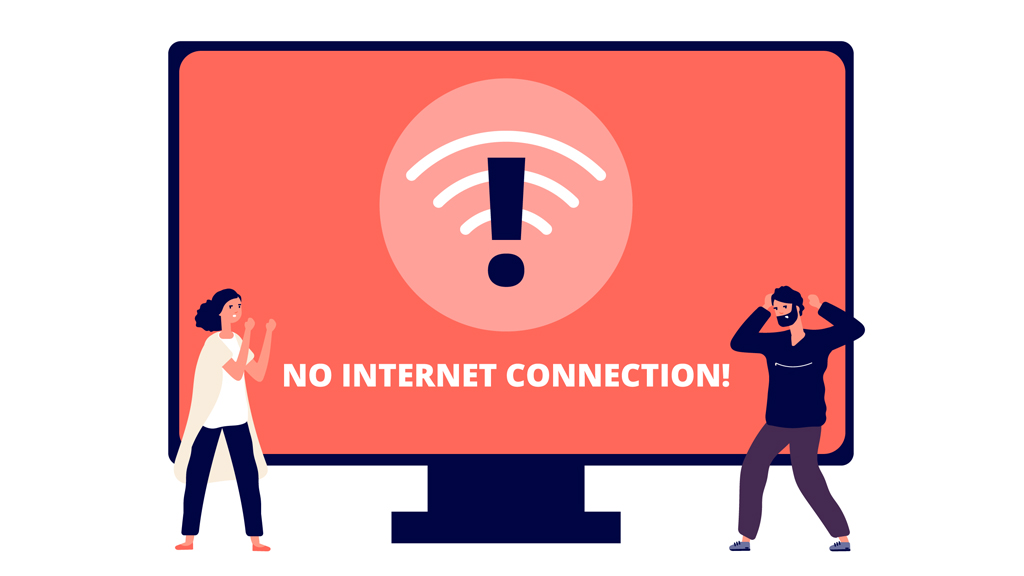
It’s frustrating when your device says it’s connected, but you still can’t get online. One common message you might see is “IPv4 No Internet Access.” This simply means your device is linked to the router, but the router isn’t connecting to the internet. Whether you are trying to work, join a game, or stream your favorite show, this issue can bring everything to a halt. That’s why fixing it quickly matters. In this guide, we’ll walk you through simple steps to get back online.
What Does ‘IPv4 No Internet Access’ Mean?
The IPv4 No Internet Access is an error that indicates that your device is connected just to the network; however, it cannot access the internet. IPv4 is a protocol, and it helps your internet device to communicate with the rest of the world.
By indicating that there is no internet access, it implies that there is an obstruction towards such connectivity. This might be a router problem, a setting on your side or an internet service problem. Well, your device will be able to communicate with other local devices, such as a printer or another computer. But you cannot open web pages or use online apps until the problem is addressed.
Common Reasons for IPv4 Connectivity Issues
When you buy bulk IPv4 address block, you should know that there can be several causes of the connectivity issues. One of these frequent problems is a router or modem problem, including obsolete firmware or incorrect settings. It can also happen because of a poorly allocated IP address on the network. On other occasions, the connection is blocked by the antivirus or firewall settings.
Faulty network cables or weak Wi-Fi signals also hinder access. Your internet provider could be facing downtime in other cases. The misconfiguration of your network settings could cause it. It may help you determine the mistake and correct it to go online again in a minimum period by checking any of these areas.
Step-by-Step: What You Should Do First
1. Restart all System Devices
Start by rebooting your computer, after which you will reboot your modem as well as your router. Shut them off, wait a half minute or so, and turn them back on. This basic action will eliminate network hiccups in your network. A complete power cycle helps your system in re-establishing its connection. By doing so, you can frequently re-establish IPv4 internet access without requiring any complex troubleshooting.
2. Check Physical Connections
Make sure your Ethernet cable is connected safely and not torn. Also, make sure that the Wi-Fi connection is steady in case you use it. You should also ensure that the network adapter works and is turned on. A loose cable or a disabled adapter is a simple solution. This is commonly forgotten during the troubleshooting process of connection problems in IPv4.
3. Use Windows Network Troubleshooter (or macOS Equivalent)
Under Windows, right-click on the network icon and click on Troubleshoot problems. In macOS, rely on the Network Diagnostics provided. The tools search for the problem and automatically implement the solution, such as repeating the adapter or clearing the DNS errors. They form a swift, directed process of identifying and resolving network issues requiring no technical expertise.
4. Release and Renew Your IP Address
Open Command Prompt with administrator rights and type: ipconfig /release, afterwards ipconfig /renew. These commands remove your device from its IP and ask the router to assign it a new IP. This can address conflicts or stale connections. It is a brilliant step when your network can be automatically connected to another network, but not on the internet.
5. Update Network Drivers
Obsolete drivers can prevent your machine to lease IPv4 address properly. Install an SSD (also known as an upgrade) and check the driver updates of your network adapter. The latest version is also available on the manufacturer’s site. Drivers’ updates help to guarantee that your device communicates with your system and the internet without any surprises when you find yourself offline.
Basic Advanced Solutions for a Long-Term Fix
Advanced solutions are applicable when you are experiencing a problem with your network connection, and you need to get it back up and running. First, configure your IPv4 for sale manually. This measure will guarantee that your device has a definite IP, and this can save conflicts or mishaps that arise due to the loss of a dynamic IP.
Later, clear the DNS buffer by writing ipconfig /flushdns into the Command Prompt. This removes outdated or faulty DNS records, which can cause you problems when browsing. The second helpful trick is the reset of the TCP/IP stack with the help of the command netsh int ip reset. This restores necessary network configurations to their default settings, usually correcting obscure configuration problems.
Lastly, never ignore the settings of your router. Access your router through the dashboard, make sure the IPv4 connection is correct, and upgrade to a newer version of the firmware. Software may be updated in the form of firmware to enhance performance and clear up any known bugs.
Although these are relatively advanced steps, they do work and are safe, provided they are done with care. Hence, they may get your internet up and running within no time.
Worried About Unstable IP Leasing for Your Network? We Will Help You!
Struggling with IPv4 availability or need stable IP leasing for your network or business? IPV4 TradeHub connects you to verified sellers and offers flexible IP lease plans with unmatched support, transparency, and security. Whether you are a hosting provider, startup, or enterprise, we make IPv4 procurement seamless and fast.